Few things are as frustrating as seeing an “SD Card Error” or “Format SD Card” warning pop up on your dash cam when you need it most. That little card is your silent witness on the road, crucial for capturing evidence in an accident or documenting unexpected events. As an expert who has spent over a decade testing and repairing hundreds of dash cams, I understand the critical role these devices play in driver safety. This guide will help you diagnose, troubleshoot, and ultimately fix these common SD card issues, ensuring your dash cam is always ready to record.
Why Do Dash Cams Suffer from SD Card Errors?
Dash cams operate under unique and demanding conditions, making their SD cards prone to errors. Understanding the root causes is the first step toward a lasting solution.
The “Loop Recording” Challenge
|
Our Picks for the Best Dash Cam in 2026
As an Amazon Associate I earn from qualifying purchases.
|
||
| Num | Product | Action |
|---|---|---|
| 1 | WOLFBOX G840S 12" 4K Mirror Dash Cam Backup Camera, 5.8GHz WiFi Smart Rearview Mirror for Cars & Trucks, Front and Rear View Dual Cameras, Night Vision, Parking Assistance, Included 32GB Card & GPS |

|
| 2 | VIOFO A229 Plus Dash Cam Front and Rear, Dual STARVIS 2 Sensors, 2 Channel HDR, 1440P+1440P Voice Control Car Dash Camera, 5GHz Wi-Fi, Voice Control, Ultra-Precise GPS |
|
| 3 | 4K Dash Cam Front, Built-in 5G WiFi, 64GB Card Included, Dash Camera for Cars, Mini Dashcam with Super Night Vision, Loop Recording, G-Sensor, 24 Hours Parking Monitor, Support 256GB Max |
|
| 4 | Dual 4K Dash Cam Front and Rear - Free 64G SD Card, 2160P+2160P UHD Dash Camera for Cars, Dashcam with 176°+160° Wide Angle, 3.5'' IPS Screen Dashcam, G-Sensor, WDR, Night Vision, 24H Parking Monitor |
|
| 5 | Dash Cam Front and Rear, 2.5K Dual Dash Camera for Cars, 2560P Mini Car Camera, 2 inch IPS Screen, 32GB Card Included, WDR Night Vision, 24 Hours Parking Monitor, G-Sensor, Support 256 GB Max |
|
| 6 | Garmin Dash Cam™ Mini 3, Ultracompact 1080p HD Dash Cam with a 140-degree Field of View, Built in Clarity™ Polarizer, Voice Controlled, Automatic Recording |
|
| 7 | Dash Cam Front and Rear, 1080P Dash Camera for Cars, 3 Channel Car Camera Front Rear and Inside with 32GB Card, Loop Recording, Night Vision, HDR, 24Hr Parking, G-Sensor |
|
| 8 | 4K+4K Dash Cam Front and Rear, Free 128GB Card Included, 5.8GHz WiFi Dash Camera for Cars, Built-in GPS, G-Sensor, 170°Wide Angle, 3" IPS Screen, 24H Parking Mode, Support 512GB Max |
|
| 9 | ROVE R2-4K DUAL Dash Cam Front and Rear, STARVIS 2 Sensor, FREE 128GB Card Included, 5G WiFi - up to 20MB/s Fastest Download Speed with App, 4K 2160P/FHD Dash Camera for Cars, 3" IPS, 24H Parking Mode |
|
| 10 | REDTIGER 4K Dash Cam Front Rear, STARVIS 2 Sensor, Free Card Included, 5.8GHz WiFi-20MB/s Fast Download, Dash Camera for Cars with GPS, WDR Night Vision, 170°Wide Angle, 24H Parking Mode(F7NP) |
|
Unlike a standard camera that writes data intermittently, a dash cam’s primary function is continuous loop recording. This means it constantly writes new video files, overwrites older ones, and repeats this cycle endlessly. This intense workload puts immense strain on the SD card’s NAND flash memory cells, which have a finite number of write cycles. Over time, these cells degrade, leading to corrupted files, write errors, and eventual card failure. This constant wear and tear is the number one reason dash cam SD cards fail.
Incompatible or Low-Quality Cards
Many drivers mistakenly use standard SD cards designed for casual photography or smartphone storage in their dash cams. These cards are not built for the extreme, continuous write cycles of a dash cam and will wear out quickly. Dash cams require “High Endurance” SD cards specifically engineered to withstand prolonged and repetitive data overwriting. Using an incompatible card can lead to frequent errors, corrupted footage, and premature failure.
Improper Formatting or File System Issues
SD cards must be formatted correctly to work seamlessly with your dash cam. Dash cams often prefer specific file systems like FAT32 or exFAT. If a card is formatted incorrectly on a computer or not regularly formatted at all, it can lead to file system corruption, fragmentation, and “Format SD Card” warnings. Furthermore, not regularly formatting the card can allow unnecessary files to accumulate, affecting performance.
Physical Damage or Debris
Sometimes, the problem isn’t the card’s data but its physical integrity or connection. Dust, dirt, or debris in the dash cam’s SD card slot can prevent proper contact, causing detection issues. Similarly, a physically damaged SD card (e.g., bent, cracked) or a faulty card slot on the dash cam itself can trigger errors.
Firmware Glitches and Settings
An outdated or corrupted dash cam firmware can interfere with how the device interacts with the SD card, leading to recognition problems or error messages. Additionally, if essential settings like “loop recording” are accidentally turned off, the SD card can fill up, preventing new recordings and triggering warnings.
Troubleshooting “SD Card Error” & “Format SD Card” Warnings
When your dash cam displays an SD card error, don’t panic. Many issues can be resolved with a few simple troubleshooting steps.
Basic Checks: Power Cycle & Re-seating the Card
Before diving into complex solutions, start with the basics.
- Power Down: Turn off your dash cam completely.
- Remove and Re-seat: Carefully eject the SD card, inspect it for any visible damage, and then firmly re-insert it into the slot.
- Power On: Turn your dash cam back on.
This simple step can often resolve temporary glitches or improper connections.
The Power of Proper Formatting
Formatting the SD card is one of the most effective solutions for resolving errors and maintaining card health. This process erases all data and prepares the card for optimal performance with your dash cam.
Formatting In-Camera
Most dash cams offer a built-in formatting option in their settings menu. This is often the easiest and recommended method, as it ensures the card is formatted to the specific requirements of your device.
- Insert the SD card into your dash cam.
- Navigate to the dash cam’s settings menu.
- Look for “Format SD Card,” “Erase SD Card,” or similar options.
- Confirm the action.
Formatting on a Computer
Formatting on a computer can be more thorough and is often recommended if in-camera formatting fails.
- Backup Data: Crucially, before formatting, copy any important footage from the SD card to your computer, as formatting will erase all data.
- Connect: Use a reliable SD card reader to connect the card to your PC or Mac.
- Open Disk Management:
- Windows: Open “File Explorer,” right-click on the SD card drive, and select “Format.”
- Mac: Open “Disk Utility,” select the SD card, and click “Erase.”
- Choose File System:
- For SD cards with capacities less than 64GB, select FAT32.
- For cards 64GB or larger, exFAT is generally preferred.
- Do not select “Quick Format” as it may not thoroughly check for errors.
- Start Formatting: Follow the on-screen prompts.
Some dash cam brands, like BlackVue, even offer proprietary PC viewers for more reliable formatting, especially for larger cards.
> “Regular formatting, ideally every 2-3 weeks, is key to preventing SD card errors and extending the lifespan of your dash cam’s memory card.” – Dashcamon.com Admin, Dash Cam Expert
Cleaning the SD Card Slot
Dust and debris can accumulate in the dash cam’s card slot over time, obstructing the connection.
- Turn Off: Ensure the dash cam is completely powered off.
- Remove Card: Take out the SD card.
- Clean Slot: Use compressed air or a soft, lint-free brush to gently clear any foreign particles from the slot. Be careful not to insert anything that could damage the internal pins.
- Re-insert: Carefully re-insert the SD card and test.
Checking for Bad Sectors (Windows Only)
Bad sectors are damaged areas on the SD card that cannot reliably store data, often leading to errors. Windows’ built-in CHKDSK utility can help identify and mark these sectors, preventing data from being written to them.
- Connect: Insert the SD card into your computer via a card reader.
- Open Command Prompt: Search for “CMD” in the Windows search bar, right-click “Command Prompt,” and select “Run as administrator.”
- Run CHKDSK: Type the command
chkdsk #: /r /x(replace#with the actual drive letter of your SD card) and press Enter. - Allow Scan: The utility will scan the card for errors and attempt to fix any bad sectors.
Updating Dash Cam Firmware
Dash cam manufacturers regularly release firmware updates to improve performance, fix bugs, and enhance compatibility. An outdated firmware could be causing your SD card errors.
- Visit Manufacturer’s Website: Go to your dash cam manufacturer’s official support page.
- Check for Updates: Look for your specific dash cam model and download the latest firmware.
- Follow Instructions: Firmware update processes vary by model, so carefully follow the manufacturer’s provided instructions. This usually involves copying the firmware file to the SD card and inserting it into the dash cam.
Verify Loop Recording is Enabled
If loop recording is turned off, your SD card will eventually fill up, causing recording to stop and leading to errors.
- Check Settings: Access your dash cam’s settings menu.
- Enable Loop Recording: Locate the “Loop Recording” or “Cyclic Recording” option and ensure it is turned on. Set it to an appropriate duration (e.g., 1, 3, or 5 minutes).
Testing the Card in Another Device
To determine if the issue lies with the SD card or the dash cam itself, try testing the SD card in another compatible device (e.g., a smartphone, another dash cam, or a computer).
- If the card works fine in another device, the problem likely lies with your dash cam.
- If the card still shows errors, it’s a strong indicator that the SD card itself is faulty.
Choosing the Right SD Card for Your Dash Cam (Prevention)
The best way to avoid SD card errors is to use the correct card and maintain it properly.
High Endurance is Key
For the demanding environment of a dash cam, “High Endurance” microSD cards are non-negotiable. These cards are specifically designed to handle the continuous read/write cycles and extreme temperatures associated with dash cam operation.
Speed Class Matters
Dash cams, especially those recording in high resolutions (2K, 4K), require fast write speeds to prevent dropped frames and corrupted files. Look for cards with:
- Class 10: A minimum speed rating.
- UHS Speed Class 3 (U3): Recommended for Full HD and most 4K dash cams.
- A higher write speed ensures smooth video capture without interruptions.
Recommended Brands and Capacities
Based on extensive experience, some brands consistently outperform others in dash cam environments:
- Samsung PRO Endurance: Often cited for its exceptional longevity and reliability, rated for 140,000 hours of continuous recording.
- SanDisk High Endurance / Max Endurance: Another top choice, specifically designed for continuous video monitoring.
- VIOFO Industrial Grade: Known for extended endurance and performance, suitable for harsh conditions.
For capacity, consider your recording needs:
- 32GB – 64GB: Suitable for regular commuting and occasional long trips.
- 128GB – 256GB (or higher): Recommended for high-resolution recording (4K) or extended footage. Always check your dash cam’s maximum supported capacity.
Regular Maintenance: The Formatting Habit
Even with a high-endurance card, regular maintenance is crucial. Formatting your SD card every 2-3 weeks or at least every 2-3 months is highly recommended. This practice clears out fragmented files, ensures the card remains stable, and can significantly prolong its life.
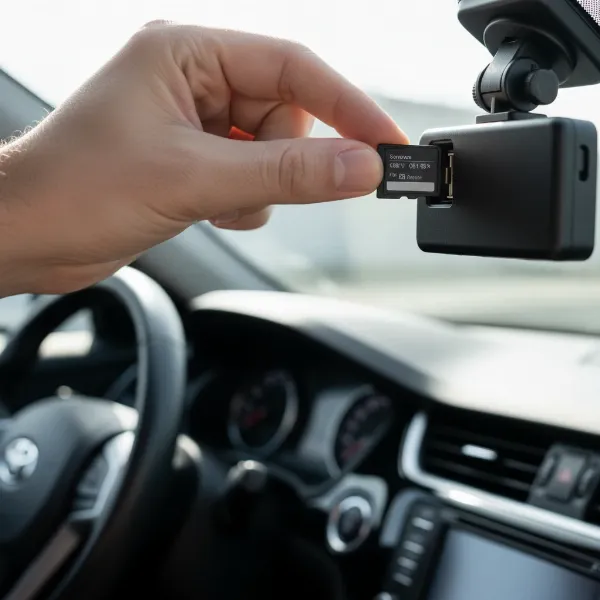 A hand holding a microSD card near a dash cam slot, emphasizing regular maintenance for dash cam SD cards
When to Replace Your SD Card
Despite all troubleshooting and prevention efforts, SD cards have a finite lifespan, especially in dash cams. On average, a dash cam SD card will last 1-2 years. If you’ve tried all the troubleshooting steps—reformatting, cleaning, checking firmware—and still encounter persistent errors, it’s a clear sign that your SD card has reached the end of its life and needs to be replaced. Continuing to use a faulty card risks losing crucial footage when you need it most.
Conclusion
SD card errors on a dash cam are a common but manageable issue. By understanding the causes, implementing systematic troubleshooting steps, and investing in the right high-endurance memory card, you can significantly reduce the likelihood of encountering these frustrating warnings. Remember, a properly functioning dash cam and a reliable SD card are your best allies for safety and peace of mind on every journey. Don’t let a simple card error compromise your security.
Frequently Asked Questions
What does “SD Card Error” mean on my dash cam?
An “SD Card Error” typically means your dash cam cannot read or write data to the memory card, preventing it from recording. This could be due to card wear, incompatibility, improper formatting, or physical damage.
How often should I format my dash cam’s SD card?
It’s generally recommended to format your dash cam’s SD card every 2-3 weeks, or at least every 2-3 months, to maintain its health and performance and prevent file corruption.
Can any microSD card work in a dash cam?
No, not all microSD cards are suitable for dash cams. Dash cams require “High Endurance” cards designed for continuous loop recording and extreme temperatures, unlike standard cards which will fail prematurely.
What file system should I use when formatting my dash cam’s SD card on a computer?
For SD cards under 64GB, use FAT32. For cards 64GB and larger, exFAT is generally recommended. Always avoid “Quick Format” for a thorough check.
What are the best brands for dash cam SD cards?
Leading brands known for reliable “High Endurance” Dash Cam SD cards include Samsung PRO Endurance, SanDisk High Endurance/Max Endurance, and VIOFO Industrial Grade.