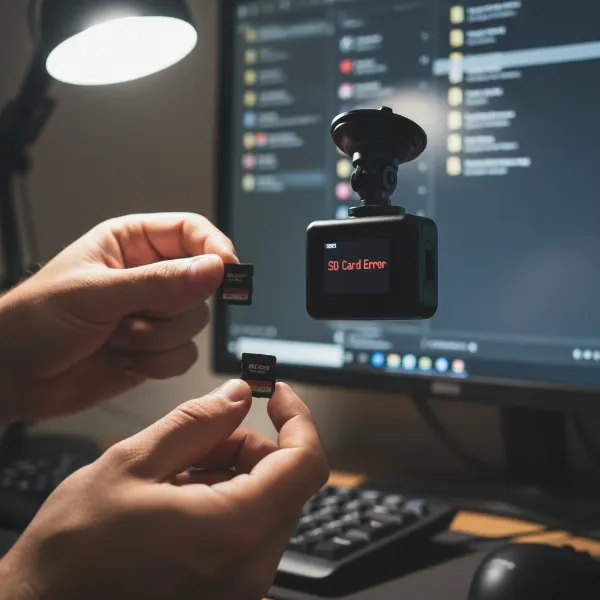
Has your dash cam started playing a frustrating game of “now you see me, now you don’t”? A dash cam that constantly turns on and off is more than just an annoyance; it’s a critical reliability issue that could mean missed footage during essential moments. As an automotive technician with over a decade of hands-on experience, I’ve personally diagnosed and repaired countless dash cam problems, from budget-friendly models to the most advanced systems. This guide, drawing on my deep understanding of imaging technology, driver-assist features, and safety standards, will walk you through the most common culprits and practical solutions to get your device back to reliable recording. We’ll cover everything from power supply nuances to memory card mysteries and internal component diagnostics, empowering you to tackle this frustrating issue head-on.
Understanding the Problem: Why Your Dash Cam Cycles Power
A dash cam that repeatedly turns on and off is a clear signal that something isn’t right within its operation. This intermittent behavior can manifest in various ways: the camera might power up, record for a few seconds, then shut down only to restart moments later, or it might struggle to even initiate a stable recording. Understanding the underlying reasons is the first step toward a lasting solution.
The Critical Role of Your Dash Cam
Your dash cam is your silent witness on the road, providing invaluable evidence in case of an accident, a parking incident, or even capturing unexpected events. Its reliable operation is paramount for your safety and peace of mind. When it malfunctions, that crucial layer of protection is compromised.
Immediate Dangers of Intermittent Operation
The most immediate danger of a dash cam constantly restarting is the potential loss of critical video footage. Imagine being involved in an incident, only to discover your dash cam was in a power cycle loop and failed to record the crucial moments. Beyond data loss, a malfunctioning dash cam can also be a distraction, drawing your attention away from the road as you attempt to troubleshoot it while driving. It can also hint at deeper electrical issues within your vehicle if the power supply is unstable.
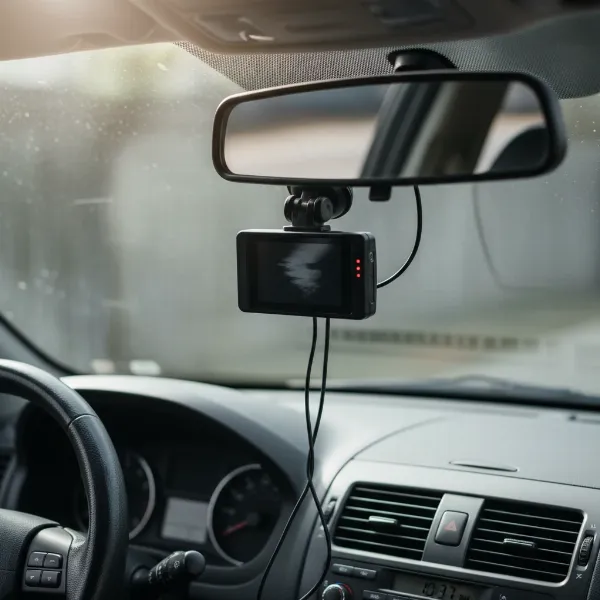 Dash cam screen showing power cycling, highlighting intermittent recording issues in a car.
Common Culprits: Diagnosing Your Dash Cam’s Power Issues
Identifying the root cause of your dash cam’s erratic behavior is key to finding an effective solution. Based on extensive experience, these are the most frequent reasons dash cams enter a perpetual power cycle.
Power Supply and Connection Problems
An unstable or insufficient power supply is perhaps the leading cause of a dash cam repeatedly turning on and off. Dash cams require a consistent flow of power to operate reliably.
- Loose Connections: The most straightforward issue can be a loose connection at the cigarette lighter socket, the USB port, or where the power cable plugs into the dash cam itself. Vibrations from driving can easily disrupt an already loose connection.
- Damaged Cables: Over time, power cables can fray, kink, or suffer internal damage, leading to intermittent power delivery. This is especially true for cables that are frequently bent or exposed to extreme temperatures.
- Faulty Adapters: The cigarette lighter adapter (CLA) or USB adapter might be defective. A blown fuse within the CLA, a melted internal spring, or a general internal malfunction can prevent consistent power.
- Incorrect Voltage/Wattage: While less common with standard setups, using a non-standard or incompatible power source (e.g., certain USB-C ports providing too much power for an older dash cam designed for lower wattage USB-A) can cause issues.
- Unstable Vehicle Voltage: Less frequently, the car’s electrical system itself might have unstable voltage, particularly if there are issues with the alternator or battery, triggering the dash cam’s protection mechanisms.
- Improper Hardwiring: For hardwired setups, incorrect connections to the vehicle’s fuse box (e.g., connecting to a constant power fuse instead of a switched fuse for ACC) or faulty grounding can lead to power fluctuations.
Memory Card (SD Card) Malfunctions
The microSD card is the heart of your dash cam’s recording capabilities, and its health is vital. A faulty or incompatible card can easily trigger power cycling.
- Corrupted or Faulty Card: Continuous overwriting of data can degrade the card over time, leading to corruption or bad sectors that the dash cam struggles to write to or read from, causing it to crash and restart.
- Full Memory Card: While most dash cams feature loop recording to overwrite old footage, a malfunction in this process or a completely full card can cause the camera to struggle and reboot.
- Incompatible SD Card: Not all microSD cards are created equal. Dash cams require high-endurance cards (e.g., U3, V30, A2 ratings) designed for constant read/write cycles. Using a standard, low-speed, or counterfeit card can lead to read/write errors and system instability.
- Poor Card Contact: Sometimes, the SD card slot itself can have poor contact with the card. Dust, debris, or a slightly misaligned card can cause intermittent connection, leading to restarts.
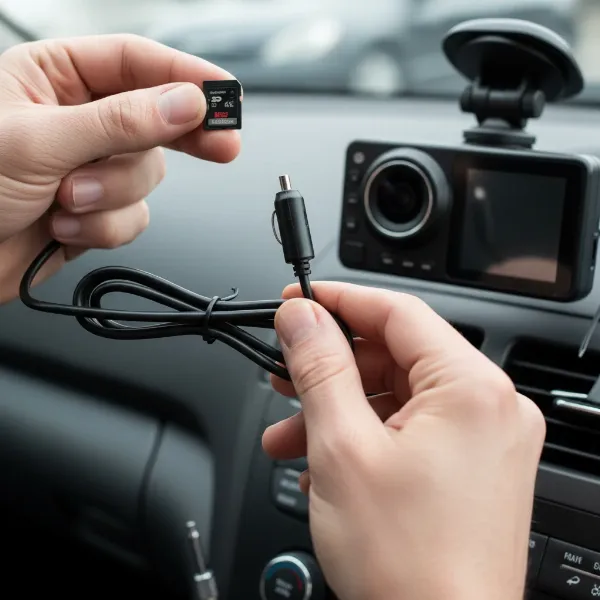 Hands inspecting a dash cam power cable and a microSD card, troubleshooting recording problems.
Overheating and Thermal Management
Dash cams operate in challenging environments, often exposed to direct sunlight and high cabin temperatures, especially during summer months.
- Excessive Heat: Prolonged exposure to intense heat can cause the dash cam’s internal components to overheat. As a self-protection mechanism, the device may shut down or restart to prevent permanent damage. Most dash cams are designed to withstand temperatures up to 65°C (149°F), but extreme conditions can push them beyond their limits.
- Insufficient Cooling: If the dash cam’s internal cooling mechanisms are compromised, or if it’s placed in a location with poor airflow, it can quickly reach critical temperatures.
Outdated or Corrupted Firmware
Just like any electronic device, a dash cam relies on its firmware (internal software) to function correctly.
- Firmware Bugs: Outdated firmware can contain bugs that cause instability, leading to crashes and restarts. Manufacturers often release updates to address known issues and improve performance.
- Corrupted Firmware Installation: An interrupted or failed firmware update can corrupt the existing software, rendering the device unstable.
- Incorrect Settings: Certain settings, such as an aggressive auto-shutdown energy-saving feature or highly sensitive parking mode settings, might inadvertently cause the dash cam to power cycle under specific conditions.
Internal Hardware Failures
While less common than the issues above, internal component failures can also lead to a dash cam constantly turning on and off.
- Faulty Battery/Capacitor: Dash cams use either a small lithium-ion battery or a supercapacitor to save the last file and maintain settings when external power is cut. A failing battery or capacitor might struggle to hold a charge, causing the device to power cycle or lose settings.
- Defective Unit: In rare cases, the dash cam itself might be defective from manufacturing, with faulty internal components (like the CPU or circuit board) causing chronic instability.
Step-by-Step Troubleshooting Guide
Now that we’ve identified the potential culprits, let’s walk through a systematic approach to diagnose and resolve your dash cam’s power cycling issue.
Step 1: Inspect Power Connections and Cables
Start with the simplest checks, as power-related issues are the most common.
- Check All Connections: Ensure the power cable is securely plugged into the dash cam, the cigarette lighter adapter (or USB port), and the vehicle’s power outlet. Wiggle each connection gently to check for looseness.
- Inspect the Cable: Visually examine the entire length of the power cable for any signs of damage, such as cuts, fraying, or pinches.
- Examine the Cigarette Lighter Adapter (CLA):
- Unscrew the tip (if possible) and check the internal fuse. Replace it if it’s blown.
- Ensure the metal spring at the tip is functional and not melted or stuck.
- Verify the side metal prongs are making good contact with the socket.
- If the CLA feels unusually loose in the socket, it might not be making consistent contact, especially on bumpy roads.
Step 2: Test with a Different Power Source/Cable
To rule out the power components, try isolating them.
- Use a Different Cable/Adapter: If you have a spare power cable and adapter (ideally the one that came with the dash cam or a reputable replacement), try using it.
- Try a Different Power Outlet: If your car has multiple 12V outlets or USB ports, try plugging the dash cam into a different one.
- Connect to a Wall Charger (if applicable): If your dash cam can be powered via a standard USB wall charger, try plugging it into a household outlet to see if the problem persists. This can help determine if the issue is with the car’s power system or the dash cam itself.
Step 3: Address Memory Card Issues
The microSD card is a frequent source of trouble.
- Remove the SD Card: First, try operating the dash cam without the SD card inserted. If it powers on and stays on without restarting, the issue is almost certainly with the card.
- Format the SD Card:
- In-Camera Formatting: The best practice is to format the card directly through the dash cam’s settings menu. This ensures the card is formatted correctly for the specific device.
- Computer Formatting (with caution): If in-camera formatting isn’t possible, format the card on a computer. Use a dedicated SD card formatter utility (like SD Card Formatter) and ensure you perform a full format, not just a quick one.
- Try a New, High-Endurance SD Card: If formatting doesn’t resolve the issue, or if your current card is not a high-endurance model, invest in a new, reputable high-endurance microSD card (e.g., Samsung PRO Endurance, SanDisk High Endurance, Kingston Canvas Go!). This is a common solution reported by many users.
- Check Card Slot: Gently inspect the dash cam’s SD card slot for any visible debris or bent pins.
Step 4: Check for Overheating
Consider your dash cam’s environment.
- Relocate if Possible: If your dash cam is directly exposed to intense sunlight, try repositioning it slightly or using a sunshade when parked.
- Ensure Airflow: Make sure the dash cam isn’t blocked by other accessories or mounted in a way that restricts airflow around its ventilation points.
- Test in Cooler Conditions: Drive with your dash cam in cooler conditions (e.g., at night or on a mild day) to see if the problem resolves, indicating a heat-related issue.
Step 5: Update Firmware and Reset Settings
Software can often be the invisible culprit.
- Check for Firmware Updates: Visit the manufacturer’s website to see if there are any available firmware updates for your specific dash cam model. Follow the instructions carefully to perform the update.
- Factory Reset: Perform a factory reset on your dash cam (usually found in the settings menu). This will revert all settings to their default, potentially resolving any software conflicts or corrupted configurations, including auto-shutdown features.
Step 6: Consider Internal Component Issues
If all the above steps fail, the problem might be hardware-related within the dash cam itself.
- Battery/Capacitor Check: If your dash cam consistently loses its date/time settings or immediately powers off after external power is removed, a failing internal battery or capacitor is likely. This often requires professional repair or replacement.
- Defective Unit: If the dash cam is still under warranty, contact the manufacturer’s support. If it’s an older, inexpensive unit, replacement might be more cost-effective than repair.
Preventative Measures to Ensure Dash Cam Longevity
Prevention is always better than cure. Here are some tips to keep your dash cam running smoothly:
- Use High-Endurance SD Cards: Always use microSD cards specifically designed for dash cam use, rated for continuous recording.
- Regularly Format Your SD Card: Format your SD card in-camera at least once a month to maintain its health and prevent data corruption.
- Check Connections Periodically: Give your power connections a quick wiggle every now and then to ensure they’re secure.
- Manage Heat Exposure: When parked in direct sunlight, consider removing your dash cam or using a reflective sunshade.
- Keep Firmware Updated: Check for firmware updates from the manufacturer regularly to benefit from bug fixes and performance improvements.
- Clean Regularly: Periodically wipe down your dash cam and its lens to prevent dust and grime buildup.
When to Seek Professional Help
While many dash cam power cycling issues can be resolved with simple troubleshooting, there are times when professional assistance is necessary. If you’ve diligently followed all the steps above and your dash cam continues to malfunction, it’s time to:
- Contact Manufacturer Support: If your dash cam is still under warranty, reach out to the manufacturer’s customer service for technical support, potential repairs, or a replacement.
- Consult an Automotive Electrician: If you suspect a deeper issue with your vehicle’s electrical system, an automotive electrician can diagnose and fix power supply instabilities.
- Visit a Specialized Dash Cam Shop: For complex internal hardware issues or hardwiring problems that you’re uncomfortable tackling yourself, a specialized shop can provide expert repair services.
“Dash cams are built to be robust, but their Achilles’ heel often lies in the quality of the power supply and the health of the memory card. Addressing these two areas first will solve the majority of intermittent power issues.” – Dash Cam Technical Expert
Conclusion
A dash cam that constantly turns on and off is more than just a minor inconvenience; it’s a critical flaw that undermines the very purpose of having the device. By systematically diagnosing common issues related to power supply, memory cards, overheating, and firmware, you can often restore your dash cam to its reliable operation. Remember, regular maintenance, using appropriate accessories, and staying informed about your device’s health are your best defenses against these frustrating problems. Don’t let a flickering screen leave you unprotected on the road. What steps will you take today to ensure your dash cam is ready for every journey?
Frequently Asked Questions
Why does my dash cam turn off immediately after I start my car?
This often points to a power supply issue. Check if the cigarette lighter adapter is fully seated, the cable is not damaged, or if the car’s power outlet is providing consistent voltage. A faulty internal battery or capacitor in the dash cam could also be the cause, struggling to maintain power during the car’s ignition surge.
Can a cheap SD card cause my dash cam to restart?
Absolutely. Cheap or low-quality microSD cards are a very common cause of dash cam malfunctions, including constant restarting. They often have slow write speeds or low durability, making them unable to handle the continuous recording demands of a dash cam, leading to data corruption and system crashes.
My dash cam only restarts when it’s hot outside. What’s wrong?
If your dash cam primarily restarts in high temperatures, overheating is the likely culprit. Dash cams can shut down as a protective measure against heat-related damage. Try repositioning it out of direct sunlight, ensuring good airflow, or using a sunshade when parked.
How often should I format my dash cam’s SD card?
It’s recommended to format your Dash Cam’s microSD card at least once a month. This helps to maintain its performance, prevent data corruption from continuous overwriting, and ensures optimal functionality, reducing the chances of power cycling or recording errors.