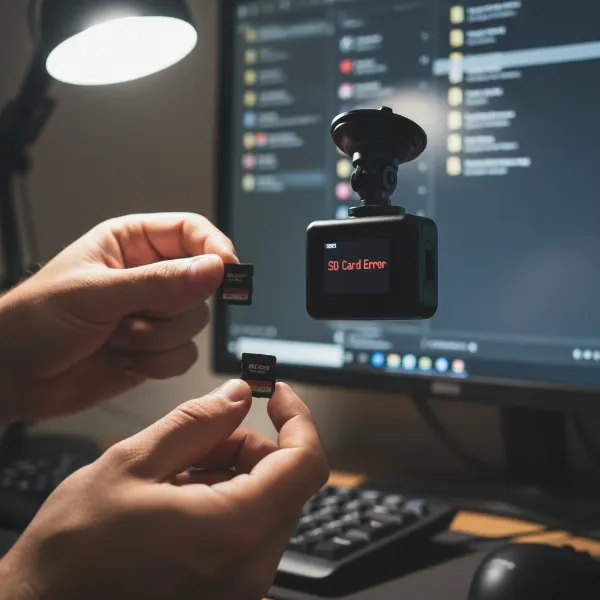
In the fast-evolving world of automotive technology, your dash cam is more than just a recording device; it’s a vital witness and an extra set of eyes on the road. Just like your smartphone or computer, dash cams rely on firmware—the internal software that controls their functions—to operate efficiently. Over time, manufacturers like Viofo, BlackVue, and Nextbase release updates to this firmware, bringing new features, enhancing performance, and patching potential issues. Neglecting these updates can leave your device vulnerable to bugs, outdated functionality, and even compromised recording quality.
This comprehensive guide will walk you through the essential steps to update the firmware on your Viofo, BlackVue, and Nextbase dash cams, ensuring your device is always running at its best. From preparation to brand-specific instructions and troubleshooting, we’ve got you covered.
Why Update Your Dash Cam’s Firmware?
Keeping your dash cam’s firmware up-to-date is crucial for several reasons, impacting everything from video quality to overall reliability. These updates are not just about adding new bells and whistles; they often contain critical improvements that safeguard your investment and enhance your driving experience.
Enhanced Features
Firmware updates frequently introduce exciting new features or improve existing ones. This could include better parking surveillance modes, refined collision detection algorithms, improved GPS accuracy, or even new language options. Staying current ensures you unlock the full potential of your dash cam.
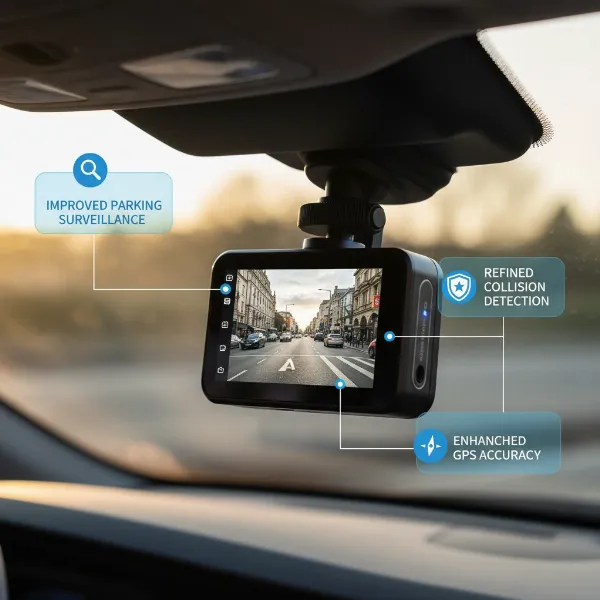 A sleek, modern dash cam displaying various enhanced features and improved performance.
Bug Fixes & Stability
One of the primary reasons for releasing firmware updates is to address software bugs or glitches that might have been present in previous versions. These fixes can resolve issues like video stuttering, unexpected shutdowns, unstable Wi-Fi connections, or inaccurate time stamps, leading to a more stable and reliable device performance.
Improved Performance
Beyond new features and bug fixes, updates often include optimizations that enhance your dash cam’s core performance. This might translate to improved video compression, faster processing speeds, better low-light recording capabilities, or extended battery life (for models with internal batteries), ensuring your device captures clearer footage more efficiently.
Compatibility
Manufacturers also release updates to ensure compatibility with newer accessories, operating systems (for companion apps), or even changes in regional regulations. An outdated dash cam might struggle to connect with the latest smartphone app versions or might not fully support new high-capacity microSD cards.
Essential Preparations Before Any Firmware Update
Before you begin the update process for any dash cam, a few critical preparatory steps can prevent common issues and ensure a smooth, successful upgrade. Taking these precautions will protect your device and your data.
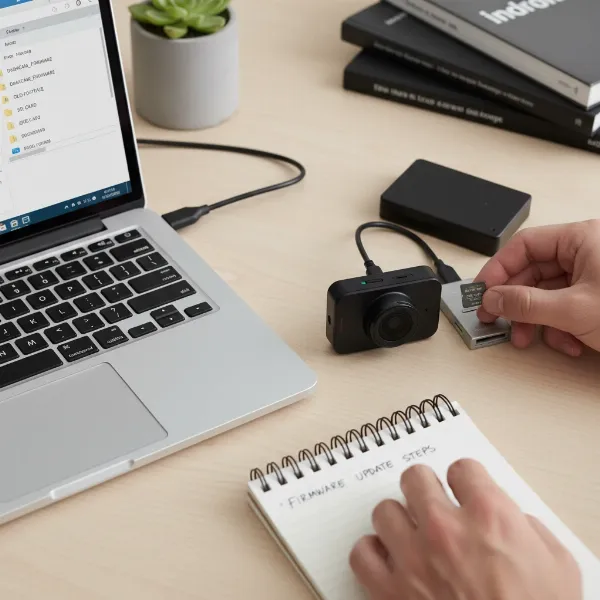 Hands performing essential preparations for a dash cam firmware update, including charging and formatting an SD card.
Fully Charge Your Dash Cam
A stable power supply is paramount during a firmware update. An interruption could “brick” your device, rendering it inoperable. Ensure your dash cam is fully charged or connected to a stable power source (like your car’s power adapter or a wall outlet, not just a computer’s USB port) throughout the entire process.
Back Up Important Files
While firmware updates typically don’t affect your recorded videos, it’s always wise to back up any critical footage from your microSD card before starting. This ensures that precious incident recordings or travel memories are safe, just in case an unforeseen issue arises during the update.
Format Your MicroSD Card
Most firmware updates require the microSD card to be freshly formatted. Formatting erases all data and ensures the card is in a clean state, ready to accept the new firmware file without interference. Always format the card using your dash cam’s internal menu if possible, or via your computer to the recommended file system (often FAT32 or exFAT, depending on the card size and dash cam model).
Download the Correct Firmware
Always download firmware directly from the official manufacturer’s website (Viofo, BlackVue, Nextbase). Ensure you select the exact firmware version for your specific dash cam model. Using incorrect firmware can lead to device malfunction. Double-check the model number on your dash cam before downloading.
Use Reliable Power & Accessories
Stick to the original USB cables, car chargers, and SD card readers that came with your dash cam, or certified replacements. Generic accessories can sometimes cause connectivity or power supply issues, which are best avoided during a sensitive operation like a firmware update.
Viofo Dash Cam Firmware Update Guide
Viofo dash cams are known for their robust performance and offer a straightforward firmware update process, primarily through a microSD card, with newer models also supporting Wi-Fi app updates.
Method 1: Updating via MicroSD Card
This is the most common and reliable method for most Viofo models.
- Check Current Firmware: Power on your Viofo dash cam and navigate to the system settings to check your current firmware version. This helps confirm the update was successful later.
- Download Firmware: Visit the official Viofo website (viofo.com), go to the “Support” or “Firmware & Manual” section, and locate the latest firmware for your specific dash cam model. The firmware file will typically have a
.binextension (e.g.,FWA229P.bin).- Important Note: If your browser renames the file (e.g.,
FWA229P(1).bin), rename it back to the original.binfilename before proceeding.
- Important Note: If your browser renames the file (e.g.,
- Prepare MicroSD Card: Insert your microSD card into your computer using a card reader. Format the card. For many Viofo models, FAT32 is the recommended format, especially for smaller cards (up to 32GB). For larger cards, exFAT might be supported by newer models.
- Copy Firmware File: Copy only the
.binfirmware file directly to the root directory (the main folder, not inside any subfolders) of the formatted microSD card.- For some newer Viofo models (e.g., A329 series): You might need to download and copy two
.binfiles (e.g.,FWA329WW.binandLD98530A.bin) to the root directory. Always refer to your specific model’s instructions.
- For some newer Viofo models (e.g., A329 series): You might need to download and copy two
- Insert and Power On: With the dash cam turned off, insert the microSD card into the dash cam. Connect the dash cam to a stable power source using its original car charger or a wall adapter.
- Initiate Update: The dash cam should power on automatically, and the firmware update process will begin. You might see an LED indicator flashing or hear a voice prompt.
- Completion: Once the update is complete, the dash cam will restart automatically. It’s recommended to go into the system settings to verify that the firmware version has been successfully updated.
Method 2: Updating via Wi-Fi App (Newer Models Only)
Some newer Viofo models, like the A229 Pro, support over-the-air (OTA) updates directly through the ViofoGPS mobile app.
- Enable Wi-Fi: Power on your Viofo dash cam and enable its Wi-Fi feature.
- Connect Phone: On your smartphone, connect to the dash cam’s Wi-Fi hotspot (usually named “Viofo_xxxx” with a default password).
- Open App: Launch the ViofoGPS app on your iOS or Android device.
- Navigate to Update: Go to “Device Settings” within the app and look for a “Firmware Update” option.
- Download and Install: Follow the on-screen prompts to download and install the latest firmware. Ensure a stable Wi-Fi connection throughout this process.
- Verify: After the update, check the firmware version in the dash cam’s system info to confirm success.
BlackVue Dash Cam Firmware Update Guide
BlackVue dash cams offer flexibility, with updates possible via microSD card or wirelessly through their dedicated app, especially for cloud-enabled models.
Method 1: Updating via MicroSD Card (Manual)
This method ensures compatibility across all BlackVue models.
- Check Current Firmware: Access your dash cam’s system information through the BlackVue Viewer software or the app to note your current firmware version.
- Download Firmware: Go to the official BlackVue website (blackvue.com) and navigate to the “Support” > “Firmware Download” section. Select your specific dash cam model and download the latest firmware.
- Unzip File: The downloaded firmware will be a
.zipfile. Unzip it to extract the contents. You should find a folder named “BlackVue” containing the firmware files. - Prepare MicroSD Card: Insert your BlackVue microSD card into your computer using the provided BlackVue USB reader. Launch the BlackVue Viewer software and format the microSD card directly through the viewer. Alternatively, format it manually to FAT32 or exFAT, depending on your card’s size.
- Copy Folder: Copy the entire unzipped “BlackVue” folder (containing all firmware files) to the root directory of the formatted microSD card.
- Insert and Power On: With the dash cam powered off, insert the microSD card back into the BlackVue dash cam. Connect the dash cam to power in your vehicle.
- Initiate Update: The dash cam will automatically detect the new firmware and begin the update process. You may hear voice prompts indicating the update status.
- Completion: The dash cam will reboot automatically once the update is complete and resume normal recording. Verify the new firmware version in the app or viewer.
Method 2: Wireless Over-the-Air (OTA) via BlackVue App
For Wi-Fi and Cloud-enabled BlackVue models, updating wirelessly via the BlackVue app is a convenient option.
- Ensure Connectivity: Make sure your BlackVue dash cam is connected to a power source and its Wi-Fi is enabled. For Cloud models, ensure it’s connected to a Wi-Fi hotspot or directly to the BlackVue Cloud.
- Open BlackVue App: Open and log into the BlackVue app on your smartphone or tablet.
- Locate Camera: Find the dash cam you wish to update in the app’s list of connected devices.
- Remote Firmware Update: Tap on “More” (often represented by three dots) next to your camera’s name, then select “Remote Firmware Update.”
- Hint: A small red dot in the app might indicate an available firmware update.
- Review and Update: The app will display the available firmware version and release notes. Tap “Update firmware” to begin downloading the firmware to your smartphone.
- Apply Upgrade: After the download finishes, tap “Continue” or “Update Firmware” to send the firmware from your phone to the dash cam. The app will guide you through the transfer.
- Completion: The dash cam will process the update and then reboot. Ensure the dash cam remains powered on until normal recording starts. Any power interruption can prevent the update from completing, potentially causing malfunctions.
Nextbase Dash Cam Firmware Update Guide
Nextbase offers multiple methods for firmware updates, catering to different models and user preferences, including SD card, PC software, and app-based updates.
Method 1: Updating via MicroSD Card
This is a widely supported method for Nextbase dash cams.
- Check Current Firmware: In your dash cam’s setup menu, select ‘System Info’ to find the current firmware version (e.g.,
R6.4). Compare this to the latest version on the Nextbase website. - Download Firmware: Visit the Nextbase support page (nextbase.com/en-gb/support) for your specific dash cam model. Download the latest firmware, which is usually a
.zipfile containing one or more.binfiles (e.g.,FW522GWA.binandLD522GWA.bin). - Extract Files: Unzip the downloaded file on your computer to access the
.binfirmware files. - Prepare MicroSD Card: Insert your microSD card into a card reader connected to your computer. Format the SD card.
- Copy Firmware Files: Copy all
.binfiles from the unzipped folder directly to the root directory of the formatted microSD card. Do not rename the.binfiles, as this can cause the update to fail. - Insert and Power On: With the dash cam turned off, insert the microSD card. Plug the dash cam into a stable power supply (e.g., car power adapter).
- Initiate Update: The update should begin automatically. The dash cam may display a progress bar or flash indicators.
- Completion: Once updated, the dash cam will restart. Verify the firmware version in the ‘System Info’ menu.
Method 2: Updating via MyNextbase Player (USB Connection)
This method is available for many Nextbase models, particularly Series 2 dash cams.
- Install MyNextbase Player: Ensure the MyNextbase Player software is installed on your computer (PC or Mac).
- Connect Dash Cam: Using the USB cable provided with your dash cam, connect your Nextbase dash cam directly to your computer.
- Select “Firmware Update”: Your dash cam screen should display several options, including “Access Files,” “Power On,” and “Firmware Update.” Select “Firmware Update” and press the “OK” button on your dash cam.
- Note: If “Firmware Update” is not an option, you might need to use the SD card method instead.
- Update via Player: In the MyNextbase Player software on your computer, select “Update Dash Cam.” The software will detect your dash cam and check for available updates.
- Install: If an update is found, click “Install Update.” The dash cam will shut down and restart automatically during the process.
- Finalize: After restarting, select “Power On” on your dash cam to resume normal operation.
Method 3: Updating via MyNextbase Connect App (Wi-Fi Enabled Series 2)
For Series 2 Nextbase dash cams with Wi-Fi connectivity, updates can be performed conveniently through the MyNextbase Connect app.
- Connect to App: Connect your Wi-Fi-enabled Nextbase dash cam to the MyNextbase Connect app on your smartphone or tablet.
- Select “Update Dash Cam Firmware”: Within the app, navigate to the relevant section (often in settings or device management) and select “Update Dash Cam Firmware.”
- Follow Prompts: The app will guide you through the download and installation process. Ensure your phone and dash cam maintain a stable Wi-Fi connection.
Common Troubleshooting Tips
Even with careful preparation, issues can sometimes arise during a firmware update. Here are solutions to common problems:
Firmware Update Fails to Start
- Check SD Card Format: Ensure the microSD card is formatted correctly (FAT32 for smaller cards, exFAT for larger ones, if supported by your model). Some Viofo models specifically require FAT32 for updates, even if they use exFAT for recording.
- Correct File Placement: The firmware
.binfile(s) or the “BlackVue” folder must be in the root directory, not nested within other folders. - Firmware Name: Do not rename the firmware file(s). They must match the exact filename provided by the manufacturer.
- Power Source: Ensure a stable and sufficient power supply. Use the original car charger or a wall adapter, not a low-power USB port on a computer.
- Correct Model: Double-check that you downloaded the firmware specifically for your dash cam model.
Dash Cam Does Not Power On After Update
- Re-attempt Update: If the dash cam is completely unresponsive, try the update process again with a different, freshly formatted microSD card if possible.
- Hard Reset: Some dash cams have a small reset button (often requiring a paperclip to press). Refer to your manual for its location and instructions.
- Contact Support: If the device remains unresponsive, contact the manufacturer’s customer support.
Incorrect Firmware Version
- Verify After Update: Always check the firmware version in your dash cam’s system settings after an update to confirm it has been successfully applied.
- Clear Cache (for app updates): If using an app, clear the app’s cache or reinstall it, then try the update again.
Expert Advice for a Smooth Update Process
Updating your dash cam’s firmware is a straightforward maintenance task that can significantly improve its longevity and performance. Based on years of hands-on experience, I emphasize the importance of preparation and patience. Always download firmware directly from the official manufacturer’s website, as third-party sources can pose security risks or offer incompatible files. Use a reliable, high-quality microSD card, and ensure it is formatted correctly before copying any firmware. The integrity of your SD card is paramount, not just for recording, but for successful updates.
“A dash cam’s firmware is its operating system. Keeping it updated is not just about new features; it’s about ensuring reliability, security, and optimal performance for those critical moments on the road.” – Dashcamon.com Admin, Dash Cam Expert
Never interrupt the power supply during a firmware update. This is the most common cause of a “bricked” device. If you’re unsure, consult your dash cam’s user manual or the manufacturer’s online support resources for model-specific instructions. A few minutes of careful attention can save you hours of troubleshooting or the cost of a replacement.
Conclusion
Regularly updating the firmware on your Viofo, BlackVue, or Nextbase dash cam is an essential part of responsible ownership. It ensures you benefit from the latest features, security patches, and performance enhancements that manufacturers continually develop. Whether you choose to update via microSD card, a dedicated desktop application, or a convenient mobile app, understanding the specific steps for your brand is key to a successful upgrade. By following the guidelines in this article and exercising a bit of caution, you can keep your dash cam operating at peak performance, providing you with reliable protection on every journey.
What new feature or improvement are you hoping for in your next dash cam firmware update?
Frequently Asked Questions
How often should I update my dash cam firmware?
It is generally recommended to check for firmware updates every few months or whenever you notice a performance issue. You don’t necessarily need to update every single time a new version is released, but keeping an eye on release notes can help you decide if a particular update is beneficial for your usage, especially if it addresses bugs you’re experiencing or adds features you desire.
Can updating firmware void my warranty?
No, updating your dash cam’s firmware using official files and methods provided by the manufacturer will not void your warranty. In fact, manufacturers encourage updates to ensure optimal device performance and to resolve potential issues. However, using unofficial firmware or modifying the update process can void your warranty.
What file system should my SD card be formatted to?
For most dash cams, especially Viofo and older models, FAT32 is the recommended file system for microSD cards, particularly for cards up to 32GB. For larger capacity cards (64GB and above), exFAT is often supported by newer dash cam models. Always check your dash cam’s manual or the firmware update instructions, as using the incorrect file system can lead to update failures.
What if my dash cam doesn’t have Wi-Fi for updates?
If your dash cam model does not feature Wi-Fi connectivity, you will typically need to use the microSD card method for firmware updates. This involves downloading the firmware file to your computer, copying it to a formatted microSD card, and then inserting the card into your Dash Cam to initiate the update.