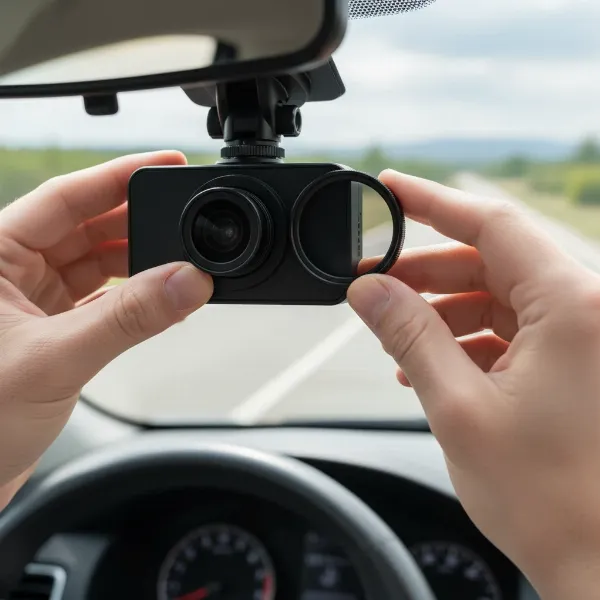
Few things are as distracting on the road as an unexpected, persistent beeping from your dash cam. While these devices are invaluable for capturing crucial evidence and enhancing driving safety, a constant chorus of alerts can turn a helpful guardian into an irritating nuisance. If your dash cam has started chiming seemingly without reason, you’re not alone. This guide, drawing on over a decade of hands-on experience with hundreds of dash cam models, will help you understand the common culprits behind these alerts and provide practical, expert-backed solutions to restore peace to your drive.
Understanding Your Dash Cam’s Beeps: Common Causes
Dash cams are designed with various alerts to inform you of their status or potential issues. However, when these warnings become frequent or seem to have no apparent cause, it’s time for some troubleshooting. Understanding the most common reasons for these auditory signals is the first step toward a quiet, reliable dash cam experience.
SD Card Problems: The Most Frequent Culprit
By far, the most common reason a dash cam beeps is an issue with its microSD card. These tiny storage devices are the heart of your dash cam, constantly writing and overwriting video footage under extreme conditions. This demanding workload means they wear out faster than typical memory cards, and their failure can trigger a cascade of alerts.
- Faulty or Defective Card: An SD card that is corrupted or physically damaged cannot properly store data, leading the dash cam to beep in protest, often indicating recording has stopped.
- Insufficient Storage: If the card is full and loop recording isn’t functioning correctly, or if there’s an accumulation of “locked” event files, the dash cam might signal that it cannot record new footage.
- Incompatible or Low-Quality Cards: Not all microSD cards are created equal. Dash cams require high-endurance cards (often marked “High Endurance” or with a “V” speed class like V30) designed for continuous writing cycles. Using a standard, consumer-grade card (like many “Ultra” branded cards) can lead to early failure and persistent beeping. Dash cams are known to “thrash” memory cards, wearing them out over time, necessitating periodic replacement.
- Improper Formatting: Dash cams typically require specific formatting (usually FAT32). If the card isn’t formatted correctly, or if it needs a “deep format” to fix underlying issues, the camera may struggle to write data and beep constantly.
|
Our Picks for the Best Dash Cam in 2026
As an Amazon Associate I earn from qualifying purchases.
|
||
| Num | Product | Action |
|---|---|---|
| 1 | VIOFO A229 Plus Dash Cam Front and Rear, Dual STARVIS 2 Sensors, 2 Channel HDR, 1440P+1440P Voice Control Car Dash Camera, 5GHz Wi-Fi, Voice Control, Ultra-Precise GPS |

|
| 2 | Dash Cam Front and Rear, 1080P Dash Camera for Cars, 3 Channel Car Camera Front Rear and Inside with 32GB Card, Loop Recording, Night Vision, HDR, 24Hr Parking, G-Sensor |
|
| 3 | ROVE R2-4K DUAL Dash Cam Front and Rear, STARVIS 2 Sensor, FREE 128GB Card Included, 5G WiFi - up to 20MB/s Fastest Download Speed with App, 4K 2160P/FHD Dash Camera for Cars, 3" IPS, 24H Parking Mode |
|
| 4 | Dash Cam Front and Rear, 2.5K Dual Dash Camera for Cars, 2560P Mini Car Camera, 2 inch IPS Screen, 32GB Card Included, WDR Night Vision, 24 Hours Parking Monitor, G-Sensor, Support 256 GB Max |
|
| 5 | 4K+4K Dash Cam Front and Rear, Free 128GB Card Included, 5.8GHz WiFi Dash Camera for Cars, Built-in GPS, G-Sensor, 170°Wide Angle, 3" IPS Screen, 24H Parking Mode, Support 512GB Max |
|
| 6 | Garmin Dash Cam™ Mini 3, Ultracompact 1080p HD Dash Cam with a 140-degree Field of View, Built in Clarity™ Polarizer, Voice Controlled, Automatic Recording |
|
| 7 | WOLFBOX G840S 12" 4K Mirror Dash Cam Backup Camera, 5.8GHz WiFi Smart Rearview Mirror for Cars & Trucks, Front and Rear View Dual Cameras, Night Vision, Parking Assistance, Included 32GB Card & GPS |
|
| 8 | 4K Dash Cam Front, Built-in 5G WiFi, 64GB Card Included, Dash Camera for Cars, Mini Dashcam with Super Night Vision, Loop Recording, G-Sensor, 24 Hours Parking Monitor, Support 256GB Max |
|
| 9 | REDTIGER 4K Dash Cam Front Rear, STARVIS 2 Sensor, Free Card Included, 5.8GHz WiFi-20MB/s Fast Download, Dash Camera for Cars with GPS, WDR Night Vision, 170°Wide Angle, 24H Parking Mode(F7NP) |
|
| 10 | Dual 4K Dash Cam Front and Rear - Free 64G SD Card, 2160P+2160P UHD Dash Camera for Cars, Dashcam with 176°+160° Wide Angle, 3.5'' IPS Screen Dashcam, G-Sensor, WDR, Night Vision, 24H Parking Monitor |
|
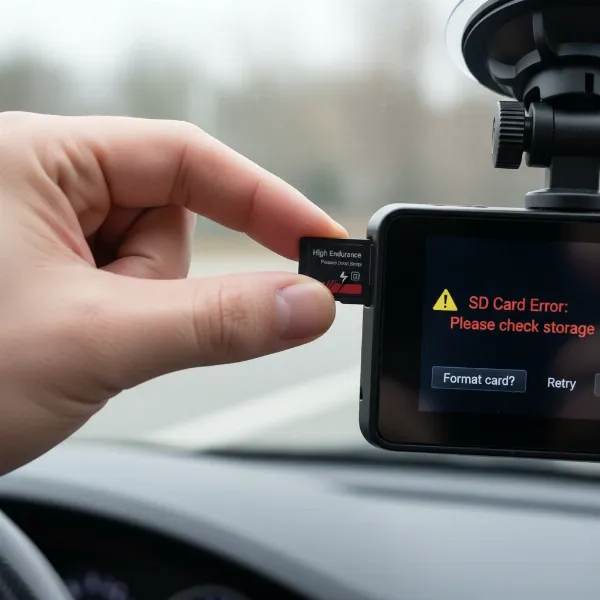 Dash cam microSD card being inserted, illustrating common storage issues and their solutions.
G-Sensor Alerts: Too Sensitive for the Road?
The G-sensor (gravitational sensor) in your dash cam detects sudden impacts or rapid changes in movement, like hard braking or collisions. When triggered, it automatically “locks” the current video file to prevent it from being overwritten. While crucial for preserving accident footage, an overly sensitive G-sensor can be a frequent source of beeping.
- False Positives During Normal Driving: Everyday driving—hitting a pothole, driving over a speed bump, or even aggressive cornering—can be misinterpreted as an “event” by a highly sensitive G-sensor, causing it to beep and lock files unnecessarily.
- Parking Mode Events: Many dash cams feature a parking mode that uses the G-sensor to detect impacts while your car is parked. If this mode is too sensitive, even a slight bump or vibration can trigger an alert, which might translate to beeps upon startup or when reviewing events.
Low Battery or Power Issues
Just like any electronic device, a dash cam needs a consistent power supply to function correctly. Beeping can sometimes indicate a problem with its power source.
- Low Internal Battery: Some dash cams have a small internal battery (or capacitor) that powers the device for a brief period after the engine is off or to save the last file. A low charge in this internal battery might trigger a “recharge” beep.
- Unstable Power Connection: A loose power cable, a faulty cigarette lighter adapter, or issues with a hardwiring kit can lead to intermittent power supply. When the dash cam loses or regains power, it might beep to alert you.
Driver Fatigue and Safety Warnings
Beyond recording, many modern dash cams include advanced driver-assistance systems (ADAS) or convenience features. Some dash cams are designed with driver safety in mind.
- Driver Fatigue Alert: To promote safe driving, certain dash cams will beep if they detect prolonged driving without a break, reminding you to pull over and rest.
- Lane Departure Warning System (LDWS) / Forward Collision Warning System (FCWS): If your dash cam has these ADAS features, it might beep to warn you if you’re drifting out of your lane or approaching a vehicle too quickly.
Firmware Glitches and Software Errors
Like any complex piece of technology, dash cams run on firmware – the internal software that controls its operations.
- Outdated or Buggy Firmware: An older firmware version or a specific bug can lead to erratic behavior, including unexplained beeping. Manufacturers frequently release updates to fix such issues and improve performance.
Radar/Speed Camera Detection (Feature, Not Fault)
For dash cams equipped with radar detection capabilities, beeping might not be a problem at all, but rather a deliberate feature.
- Speed Monitoring Alerts: These dash cams are designed to beep when they detect radar signals or approach known speed camera locations, serving as an alert to maintain appropriate speed.
Connection Issues (Especially for Multi-Channel Cams)
If you have a multi-channel dash cam system (e.g., front and rear cameras), connection problems can arise.
- Loose Cable to Secondary Camera: A disconnected or faulty cable running to a rear or interior camera can cause the main unit to beep, indicating a missing or non-functional component.
Step-by-Step Guide: How to Stop Your Dash Cam from Beeping
Now that you understand the potential causes, let’s walk through the solutions. Start with the simplest fixes and work your way through the more involved steps.
Diagnose and Address SD Card Issues First
Given that SD card problems are the leading cause of beeping, this should be your first area of focus.
- Remove and Reinsert the SD Card: Power down your dash cam, remove the microSD card, and then reinsert it firmly. Sometimes a simple re-seating can resolve a loose connection.
- Format the SD Card:
- In-Camera Formatting: Most dash cams have an option in their settings menu to format the SD card. This is often the quickest and most effective first step.
- Computer Formatting (FAT32): If in-camera formatting doesn’t work, connect the card to your computer via a card reader. Format it to FAT32. For persistent issues, a “deep format” utility (check your dash cam manufacturer’s support page for recommendations) might be necessary.
- Use a Recommended, High-Endurance SD Card: If your card is old, you suspect it’s faulty, or it’s not a high-endurance model, replace it. Invest in a new, reputable brand (like Samsung Pro Endurance, SanDisk Max Endurance, or Transcend High Endurance) and ensure it meets your dash cam’s specifications (e.g., Class 10, U3, V30). Dash cams write and rewrite data constantly, which wears out standard cards quickly.
- Check for Locked Files: Too many locked files (often caused by an oversensitive G-sensor) can fill up the card. Delete these manually if necessary, or adjust G-sensor settings (see below).
Adjust G-Sensor Sensitivity
If your dash cam beeps during normal driving or small bumps, its G-sensor might be too sensitive.
- Access Settings: Navigate through your dash cam’s menu to find the G-sensor or impact detection settings.
- Lower Sensitivity: Reduce the G-sensor sensitivity from “High” to “Medium” or “Low.” Some cameras allow you to turn it off entirely for normal driving, which can be useful if you’re experiencing frequent false positives.
- Parking Mode Sensitivity: If beeping occurs in parking mode, adjust its sensitivity separately if your dash cam offers that option.
Ensure Stable Power Supply
A consistent power connection is vital for proper operation.
- Check All Cables: Ensure the power cable is securely plugged into both the dash cam and the car’s power source (cigarette lighter or hardwire kit).
- Inspect the Adapter: If using a cigarette lighter adapter, make sure it’s firmly seated and that the car’s power socket is clean and free of debris.
- Test with a Different Power Source/Cable: If possible, try powering the dash cam with a different USB cable or power adapter to rule out a faulty accessory. For hardwired setups, check the fuse connection if you’re comfortable doing so, or consult with an auto electrician.
- Monitor Internal Battery: If your dash cam has an internal battery, ensure it gets enough charge. Some dash cams only charge the internal battery when the engine is running.
Update Your Dash Cam’s Firmware
Firmware updates often include bug fixes and performance improvements that can resolve unexplained beeping.
- Visit Manufacturer’s Website: Go to your dash cam manufacturer’s official support website. Look for a “Downloads,” “Support,” or “Firmware” section.
- Download Latest Firmware: Find the correct firmware for your specific dash cam model and download it.
- Follow Update Instructions Carefully: Firmware updates typically involve copying a file to your SD card and inserting it into the dash cam. Always follow the manufacturer’s specific instructions precisely to avoid bricking your device.
Disable Unnecessary Alerts
Sometimes, the beeping is simply an alert that you don’t need or want.
- Explore Dash Cam Settings: Go through your dash cam’s menu and look for “Alerts,” “Event Triggers,” “System Sounds,” or “Volume” options.
- Turn Off Specific Alerts: You might be able to disable beeping for certain events (like parking mode impacts, driver fatigue warnings, or radar detection) without affecting core recording functions. You can also lower the overall volume.
- Review User Manual: If you’re unsure, consult your dash cam’s user manual for detailed instructions on managing alert sounds.
Isolate Multi-Channel Camera Problems
For front-and-rear or multi-channel dash cams, a secondary camera connection might be the issue.
- Unplug Rear/Interior Camera: Disconnect the cable for your rear or interior camera from the main dash cam unit.
- Test the Main Unit: See if the beeping stops when only the main front camera is operating. If it does, the problem lies with the secondary camera or its connection cable, which you can then inspect or replace.
Proactive Maintenance to Prevent Future Beeping
Preventing beeping before it starts saves you time and frustration. Implement these proactive maintenance tips:
- Regular SD Card Formatting: Format your microSD card at least once a month (or every two weeks for heavy users) directly in the dash cam. This helps maintain its health and prevents data corruption.
- Invest in High-Quality SD Cards: Always use reputable, high-endurance microSD cards specifically designed for dash cam use. They might cost a bit more, but they are crucial for reliability.
- Keep Firmware Updated: Periodically check your dash cam manufacturer’s website for the latest firmware updates.
- Monitor G-Sensor Settings: Adjust G-sensor sensitivity as needed based on your driving conditions and preferences.
- Ensure Secure Power Connections: Regularly check that all power cables are firmly connected.
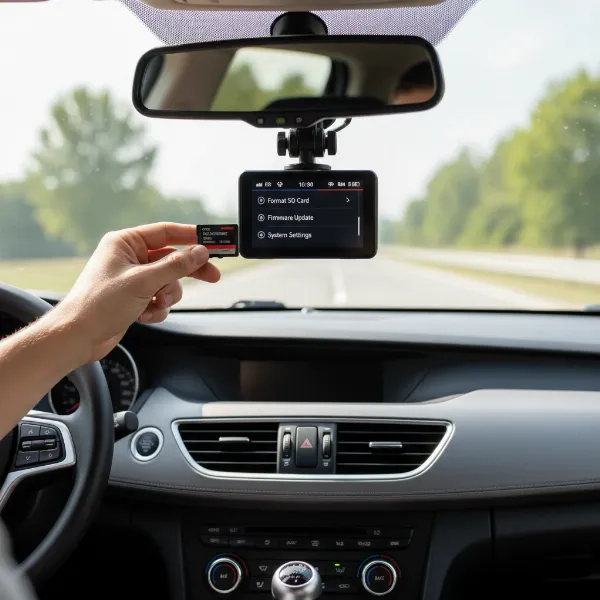 Driver performing proactive maintenance on a dash cam, ensuring its optimal function.
Conclusion
A dash cam is an essential tool for modern drivers, offering peace of mind and protection on the road. When your dash cam starts beeping incessantly, it’s usually a clear signal that something needs attention, most often related to its SD card or sensor sensitivity. By systematically troubleshooting these common issues, from replacing a faulty memory card to adjusting sensor settings and updating firmware, you can quickly diagnose and resolve the problem. A silent, fully functional dash cam ensures it’s ready to capture critical moments without adding unnecessary distractions to your journey. Don’t let a beeping dash cam become a persistent annoyance; take action to get it operating smoothly. What steps will you take today to ensure your dash cam is reliably recording?
Frequently Asked Questions
What type of SD card is best for a dash cam?
For optimal performance and longevity, you should always use a high-endurance microSD card with a speed class of U3/V30 or higher. Brands like Samsung Pro Endurance, SanDisk Max Endurance, or Transcend High Endurance are specifically designed to withstand the constant write cycles of a dash cam, reducing the likelihood of errors and beeping.
How often should I format my dash cam’s SD card?
It is generally recommended to format your dash cam’s microSD card at least once a month. For commercial drivers or those who drive extensively, formatting every two weeks can further help maintain card health, prevent data corruption, and reduce the chance of beeping alerts. Always format the card directly through your dash cam’s settings.
Can a loose power connection cause my dash cam to beep?
Yes, absolutely. A loose or intermittent power connection can prevent your dash cam from receiving consistent power, which often triggers beeping alerts. The Dash Cam may beep to indicate it’s losing power, struggling to stay on, or unable to record properly due to an unstable power supply.